

Digital Camera (digicam) such as my Pentax Optio S5n and Casio Exilim EX750 with MPEG4 capability is using Microsoft ISO MPEG-4 Video V1.1 (also known as M4S2) codec. I have no trouble playing these clip in my digicam connected to TV or in my computer. But I want to play those clip in my DVD/DivX compatible players too. At first, it was difficult for me to transfer those MPEG4/M4S2 clip to MPEG2/DVD or to MPEG4 with DivX codec. After a little googling and try, I finally found the solution.
Installation
Before we can convert video clip from digicam with M4S2 codec to a DVD or another type of video clip, we need these software to help us. Download and install these files into your computer first:
- VirtualDub
- Gordian Knot Codec Pack
- ffdshow-20050803
Whatever you do, please install VirtualDub first. Just extract the VirtualDub files into whatever directory you like, ea C:\VirtualDub.
After that, install the Gordian Knot Codec Pack by following the onscreen instructions.
At Choose Component Menu, make sure you select all the component of Gordian Knot Codec Pack. Please deselect ffdshow like the picture below. I suggest you used ffdshow version 2005-08-03 (or above), as in my attempt to open M4S2 file never succeded when my ffdshow is lower than 2005-08-03 version.
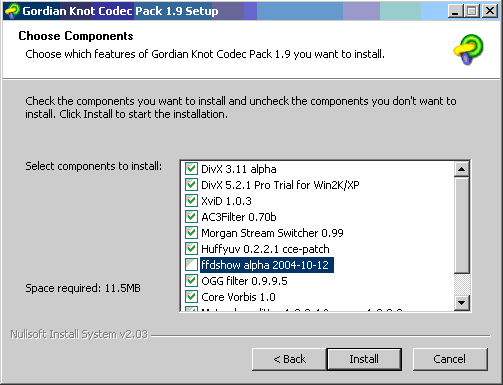
ffdshow
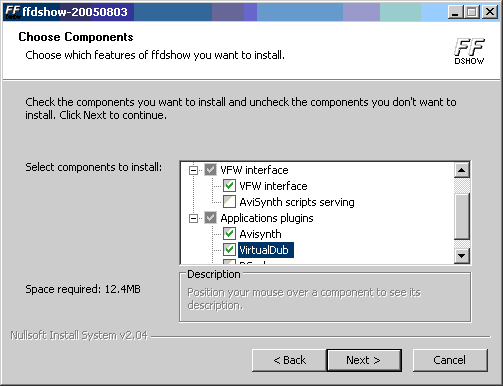
After Gordian Knot Codec Pack installation is finish, run the ffdshow-20050803 installation. Read and follow the onscreen instructions until you reach Components Selection page like the picture below. At that page, make sure you select VFW interface and VirtualDub at Applications plugins.
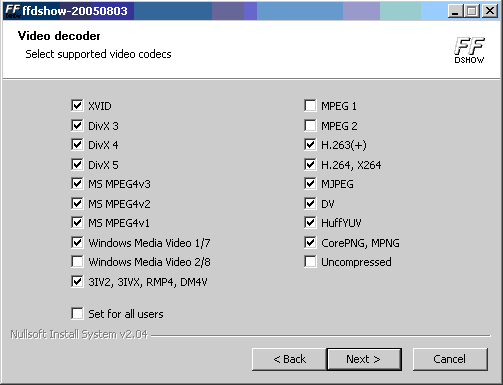
And at the next page, the Video decoder page, make sure you select MS MPEG4v2. Other selections is up to you but I suggest selections like the picture below.
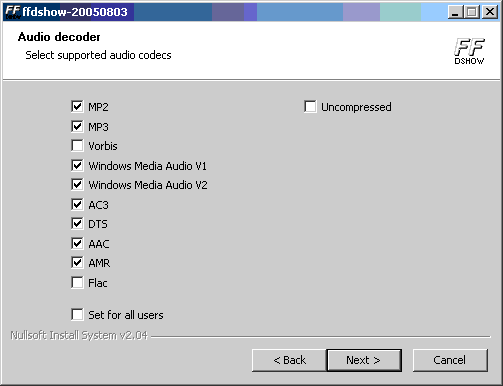
At the Sound decoder page, my selections suggestion would be like the picture below.
And when the installer ask you where the VirtualDub filters directory, enter the directory where your VirtualDub extracted and add it with plugins subdirectory. Continue with installation
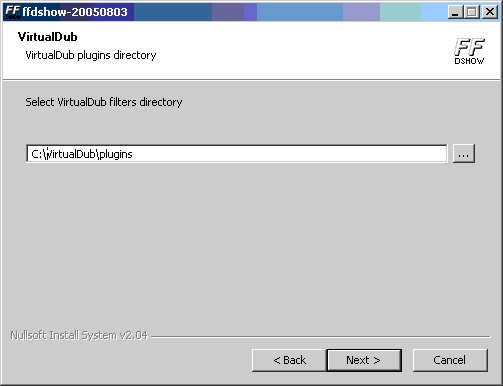
After the installation finish, we need to setup ffdshow so ffdshow is the one who handle M4S2 decoding session.
- Run ffdshow – VFW codec configuration menu by selecting it in the Windows Start Menu
- Under Decoder Tab, select Codecs setting in the left list.
- Find M4S2 in Supported FOURCCs/remark column and set Decoder to libavcodec. (shown in picture below)
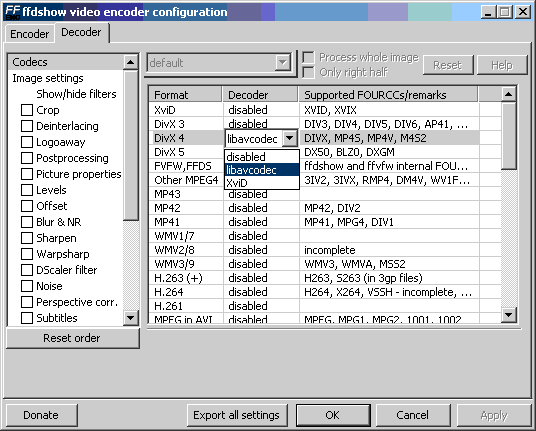
- Click on OK button to save the changed configuration
VirtualDub
VirtualDub is a great free software to dub video. There are great tutorials about these powerful free software. Please check google if you want to find out more about this software.
Start your VirtualDub Program and Open your M4S2 video/avi file using File – Open video file… menu. If you follow the instructions about ffdshow then you can open your M4S2 video/avi file without any warning.
To make sure, if you open File – File Information… menu you will see information that may look like the picture below. Look at Decompressor, it will show ffdshow Video Codec.
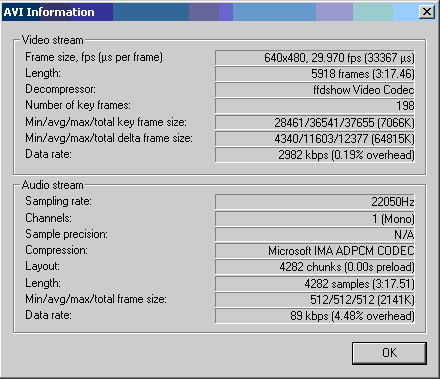
And now I will convert this digicam MPEG4/M4S2 file into MPEG4/DivX that can be played in DivX Player. To do this, at first we need to select Video – Full processing mode menu and make sure there was a bullet/check next to the menu. Then open Video – Compression menu and VirtualDub will open up a Select video compression window like the picture below. For best compatibility, I suggest in using DivX ; – ) Fast-Motion compression or XviD MPEG4 Codec. At this sample, I used DivX ; – ) Fast-Motion.
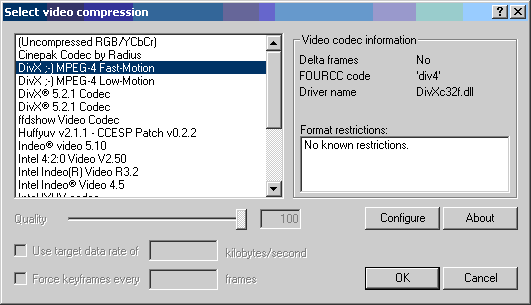
After the video, we now move to the audio. But before we can change anything to the audio, we need to select Audio – Full processing mode menu and make sure there was a bullet/check next to the menu. After the Full processing menu selected, we can see that other menu like Conversion and Compression is now lit up.
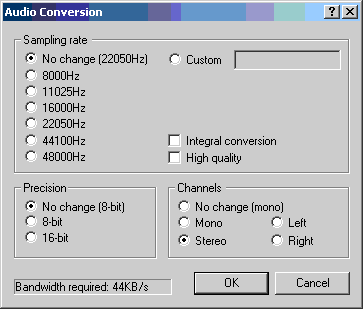
As you may or may not known, most digicam like my Pentax Optio S5n or Casio Exilim EX750 produce a mono audio. If you like, VirtualDub support the audio conversion from mono to stereo. To make VirtualDub do the conversion, we need to open Audio – Conversion… menu and VirtualDub will show us window like the picture below. At the Channels area, select Stereo. Leave the rest alone.
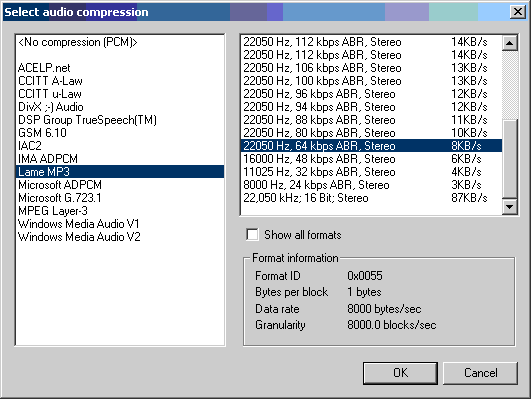
And now for the audio codec, we need to change the audio codec from less popular Microsoft IMA ADPCM codec to a more popular codec like MP3. And almost like in video, we do these by open Audio – Compression… menu and VirtualDub will show us Select audio compression window like the picture below. In here we choose between DivX ; – ) Audio, Lame MP3 and MPEG Layer-3 compression. I personally prefer to use Lame MP3 compression because of its better selections.
After choosing the compression engine, we need to select the audio format. From Audio Conversion windows we found out that the audio was 22050Hz and off course in Stereo channels, so we can make that a start for selecting an audio format. As shown in picture below, I used the lowest format.
Now we are ready to recompress the file using our selected Audio-Video Compression/Conversion. We need to open File – Save as AVI… menu or press F7. Select where and file name of the output file and when you ready press the Save button. VirtualDub will process your file and show window identicall with the picture below. For faster process, uncheck the Show input video and Show output video. Wait until it finish and your new video file is ready.

Lastly, I hope now you can enjoy your digicam video in other media too. If you have corrections or questions about these matters, you can contact me using Contact page in isnandi.net.
nice guide…
but I wonder if you also know how to convert videos like mpeg or divx to MJPEG which is casio exilim format…
any help will be appreciated..
thanks and more power…
It doesn’t work with the latest version of gordian; ffdshow and virtual dub…
In file information there’s no indication like you have and virtual can’t read the video (for testing…)
Whe have a mozaic
0
Great instructions. Worked like a charm!
Thanks a lot for creating this tutorial. I am an editor and have never come across this codec before, your tutorial saved me from a lot of anger.
I always find something new and interesting every time I come around here – thanks.
At last, everything worked
Fantastic! With this I can handle all kinds of video problems. Thanks a lot.
Greetings from Berlin
Thanks a lot, this really helped me out!
greets from sweden
I’ve installed vista ultimate, but has loads of problems with ffdshow combined with Vdub.
I did make it work in XP, but Vista wont bugde… any ideas?
/Party
I haven’t tried it in Vista yet. But I will try it in the near future with my new notebook
thx4help
OMG! I am so glad I found these tips. I’ve just got into video editing and I was cracking my head trying to find out why Sony Vegas Video wasn’t reading my videos from my Casio EX-Z850. Now I can read it with the correct version of ffdshow. The latest ffdshow beta stuffed up my audio (5.1 became 2 channel) so the 2005 is the best at the moment.
how to get it?
???????? ? ????????????? ????! ?????????? ?????? ????? ?????? 🙂
I’ve used this and it works great. A must have piece of software. Blog is good too, explains topic well.
Wow there is a hell of a lot to take in here, thanks for the detailed post.
I just tweeted this…
thx for ypur info
its very detail, good job!
Valuable info. Lucky me I found your site by google search